Unscrew Every Screw Controls (PC & Mobile)
Movement, aiming, shop shortcuts, and camera habits that keep long unscrew sessions comfortable.
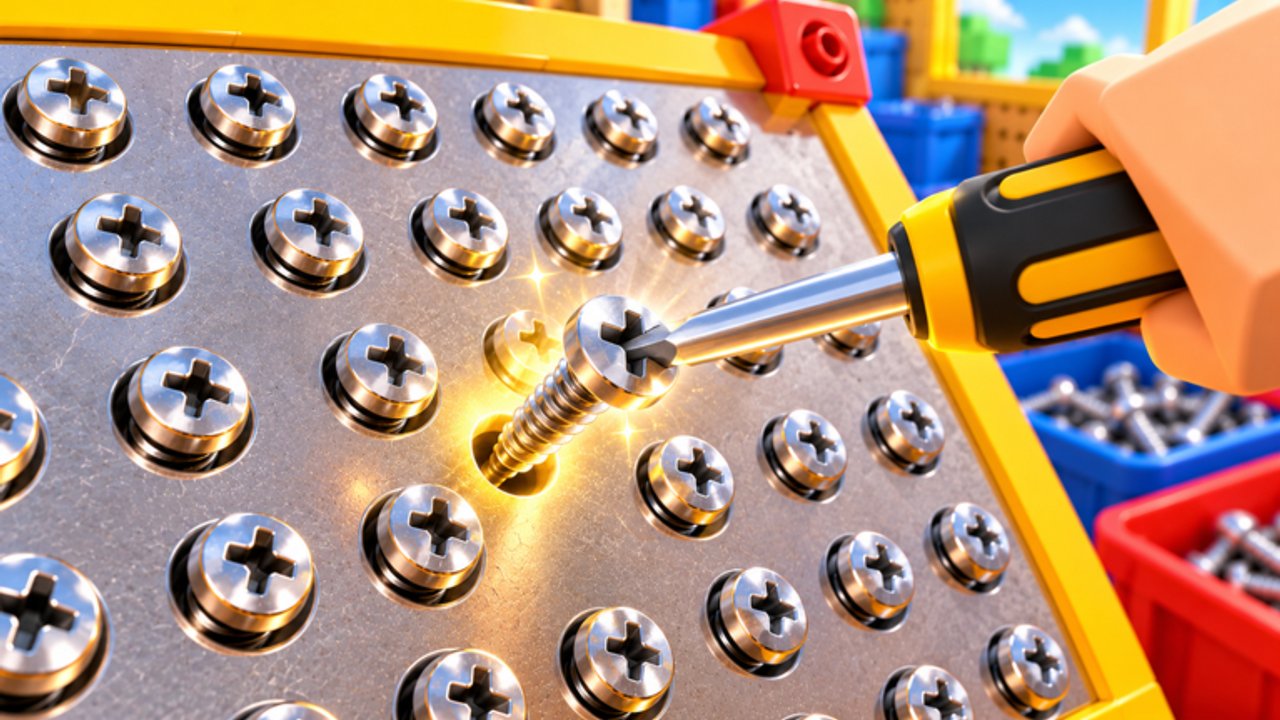
Comfortable controls are half of a clean clear in Unscrew Every Screw. The fantasy is satisfying screw removal — click, collect, sell, upgrade, escape — but awkward camera work and missed mobile taps waste more time than a slightly slower tool. This guide covers the practical PC and mobile habits that keep your hands relaxed across a full room, how to aim at awkward fasteners, how shop and HUD buttons usually sit in this genre, and how to recover when input feels sticky after a patch.
Pair this page with Getting Started if you are brand new, How to Escape for the completeness checklist, and Coin Farming once economy pacing is your bottleneck. After any [UPD🥕🔩] title cue, rejoin once and re-test binds — see Updates.
Core loop mapped to inputs
Every productive minute uses the same input loop:
- Move into range of a screw cluster.
- Aim the camera so the fastener silhouette is clear.
- Interact / click to unscrew.
- Collect loose screws if they do not auto-vacuum.
- Open shop when you have a named upgrade target.
- Resume clearing without spinning the camera in circles.
If any step feels noisy — overshooting walks, mis-taps on mobile, shop closed by accident — fix that step before chasing personal bests in Speedrun Tips.
PC controls (keyboard + mouse)
Most Roblox experiences share a familiar baseline. Unscrew Every Screw behaves like a third-person / click-to-interact simulator:
- W A S D — walk. Strafe more than you spin when clearing a wall line.
- Mouse look — aim. Prefer small pitch adjustments over dramatic rolls when hunting backside screws.
- Left click — primary interact / unscrew when a fastener is targeted or highlighted.
- E or on-screen prompts — secondary interact if the build uses proximity prompts for sell / shop NPCs (labels can change after patches).
- Shift (if enabled) — sprint. Useful between distant clusters; less useful while precision-aiming high mounts.
- Esc / Roblox menu — leave settings, volume, and graphics alone mid-run unless lag forces a change.
Practical PC habits:
- Keep sensitivity mid-low so tiny screws on dark surfaces stay trackable.
- Stand slightly off-center from a panel so your click ray is not fighting your own avatar.
- After selling, face the next unfinished wall before you move — orientation beats sprinting into the wrong corner.
Mobile controls (touch)
Mobile clears are fully viable if you respect thumb real estate:
- Left virtual stick — movement. Short taps beat long slides when you only need one step closer.
- Right drag — camera. Re-center often; mobile drift is the main reason players miss ceiling mounts.
- Tap — unscrew / interact when the prompt or highlight appears.
- HUD buttons — Codes, Shop, Settings, and inventory icons usually sit on the edges. Learn their silhouettes so you do not open Settings while trying to sell.
Mobile tips that save minutes:
- Play in landscape when possible for a wider scan of the room.
- Lower graphics only if frames drop; stuttering causes double-taps and missed fasteners.
- Rest your thumbs every few minutes — ASMR sessions invite long play, and accuracy falls when hands cramp.
- If a screw will not register, step half a character closer and tap again before assuming it is “stuck.”
Camera discipline for hidden screws
Escape fails more often from bad camera work than from weak tools. Build a camera ritual:
- Clear the face you see from the main walkway.
- Orbit each free-standing prop — drag yaw slowly, then pitch up and down.
- Crouch your view toward skirting and furniture legs.
- Tilt up for wall mounts and hanging props.
- Finish with a second lap from the opposite corner.
On PC, mouse look makes orbiting cheap. On mobile, pause movement while you drag the camera so the stick does not walk you out of range mid-scan. Full escape scanning lives in How to Escape.
Shop, codes, and HUD targets
Exact button art changes with Omochi Guild patches, but the jobs stay stable:
- Shop / Tools — spend Coins on drivers that raise unscrew speed or reach. Strategy detail: Tools & Upgrades and the Tools Tier List.
- Sell — convert inventory into Coins. Do not mash sell with no upgrade plan; see Coin Farming.
- Codes / Rewards — redeem only verified strings from the Codes Hub. None were verified active at the last review.
- Settings gear — graphics, volume, sometimes the codes box itself.
If a HUD icon moves after an update, soft rejoin once. Stale servers can show old UI while the title already shows [UPD🥕🔩].
Accessibility and comfort
- Raise UI scale in Roblox settings if shop text is hard to read.
- Use headphones if the ASMR clicks help you stay focused — mute if they distract.
- Take breaks on long farms; control accuracy drops before motivation does.
- Colorblind players: rely on outline / highlight prompts more than screw tint alone when the room is busy.
Troubleshooting sticky input
| Symptom | Try this |
|---|---|
| Clicks do nothing | Step closer, re-aim, soft rejoin |
| Mobile tap opens wrong menu | Learn HUD edges; pause movement before tapping |
| Camera spins wildly | Lower sensitivity; reset with a short Esc open/close |
| Shop will not open | Look for proximity prompt vs HUD button; rejoin after UPD |
| Laggy unscrew | Drop graphics one step; avoid overcrowded 16-player chaos — see Players |
Practice drills (five minutes)
- Clear one wall using only strafes — no spinning in place.
- Orbit a single cabinet front-to-back without missing a click.
- Open shop, note one upgrade price, close, return to the same unfinished corner.
- On mobile, re-center camera every ten screws on purpose.
- End with the escape checklist from How to Escape.
Master controls before you blame the shop. A calm camera and clean taps turn the same tool into a faster clear — and make every later guide on this wiki easier to apply.
Frequently Asked Questions
Quick answers for Unscrew Every Screw players.
What are the basic PC controls?
Use WASD to move, mouse to look, and left click to unscrew when a fastener is targeted. Shop and sell actions use HUD buttons or proximity prompts depending on the current build.
Can I play Unscrew Every Screw well on mobile?
Yes. Use the left stick to move, right drag for camera, and taps to interact. Landscape mode and frequent camera re-centers help you catch hidden screws.
Why do my clicks sometimes fail?
You may be out of range, aimed at the wrong surface, or on a stale server after an update. Step closer, re-aim, then soft rejoin if it persists.
Where is the codes button?
Look for Codes, Rewards, Gift, or a Settings gear text box. Labels can move after patches — confirm on the Codes Hub and rejoin after [UPD] title cues.
Should I change sensitivity for this game?
A mid-low look sensitivity usually helps tiny dark screws stay trackable. Raise it only if turning between distant clusters feels too slow.